
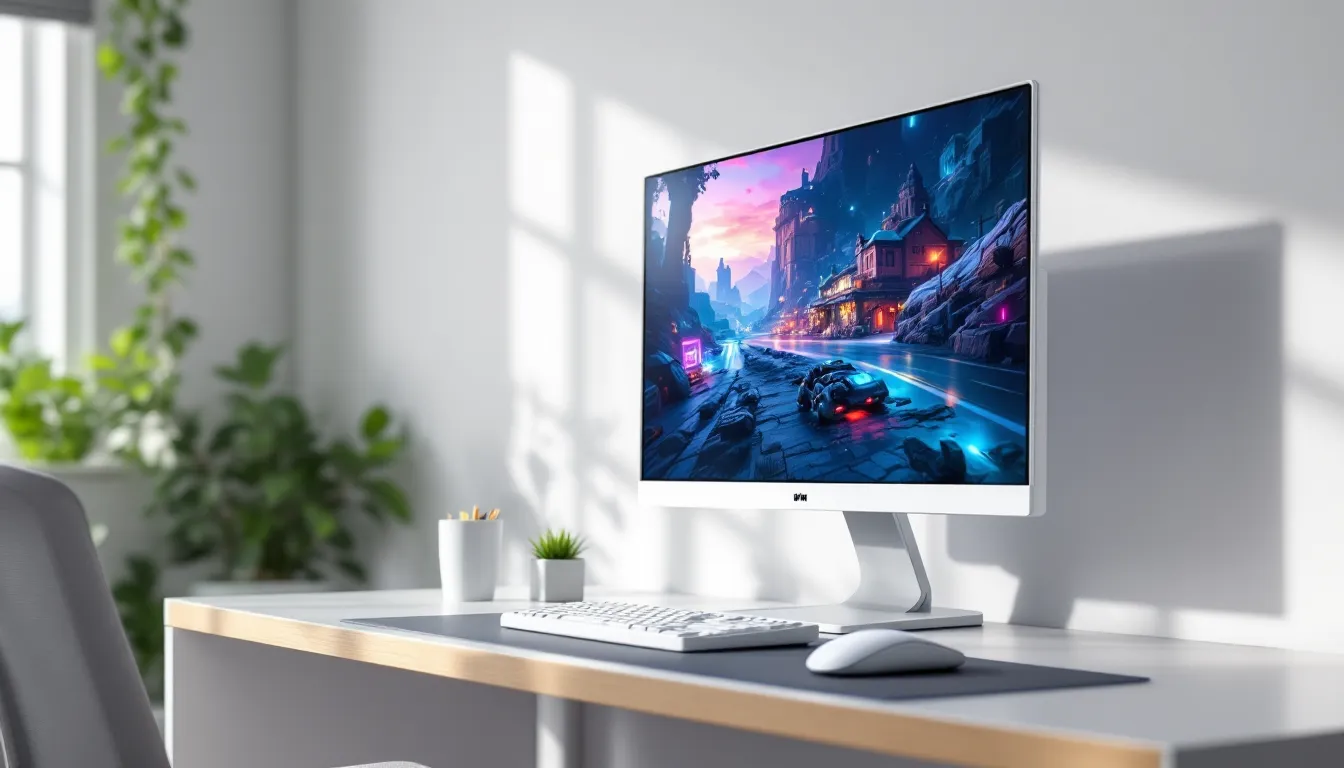

White peripherals have exploded in popularity over the past two years, and gaming monitors are no exception. Once a niche aesthetic choice, white gaming monitors now sit alongside their black counterparts in nearly every manufacturer’s lineup. But this isn’t just about looks, many of 2026’s best-performing panels happen to come wrapped in crisp white bezels and stands.
Whether you’re building a clean setup around white peripherals or just want something that doesn’t blend into the void of your desk, there’s never been a better time to go white. The options range from budget 1080p displays to bleeding-edge 4K OLED panels with refresh rates that would’ve been science fiction five years ago. This guide breaks down everything you need to know: the specs that actually matter, the standout models worth your cash, and the practical stuff like keeping that pristine finish from turning yellow.
Key Takeaways
- White gaming monitors deliver identical performance to black models while transforming your setup’s visual aesthetic and pair seamlessly with modern minimalist gaming room trends.
- For competitive gaming, prioritize 240Hz+ refresh rate with 1ms response time, while immersive gamers benefit more from 1440p resolution and fast IPS panels with superior color accuracy.
- Match your white gaming monitor specs to your GPU tier: high-end cards warrant 1440p 240Hz+, mid-range GPUs suit 1440p 144Hz, and budget cards perform best at 1080p 144Hz.
- White bezels and stands require weekly cleaning with microfiber cloths and protection from direct sunlight, heat, and smoke to prevent yellowing and maintain their pristine appearance for 4-5+ years.
- Essential features include adaptive sync (G-SYNC Compatible or FreeSync Premium), proper HDMI 2.1 for console gaming at 4K 120Hz, and color temperature calibration set to 6500K for eye comfort.
Why Choose a White Gaming Monitor?
Aesthetic Appeal and Setup Integration
White monitors transform a battlestation from a collection of gear into a cohesive visual statement. They pair effortlessly with white keyboards, mice, and PC cases that have become staples of modern setups. The color reflects ambient RGB lighting differently than black, creating softer glows and more dynamic lighting effects.
Beyond matching peripherals, white displays blend seamlessly into brighter room environments. Where black monitors can look like dark rectangles against light walls, white bezels disappear into neutral or minimalist spaces. This matters more than you’d think if your gaming setup doubles as a workspace or content creation hub.
Modern Gaming Room Trends
The shift toward white gaming gear mirrors broader interior design trends favoring clean, airy aesthetics over the aggressive “gamer” look of the 2010s. Scandinavian minimalism and Japanese-inspired setups have influenced how gamers think about their spaces, prioritizing clean lines and neutral palettes.
Streaming culture has accelerated this trend. Content creators need backgrounds that look good on camera, and all-white or white-accented setups photograph exceptionally well. The monochrome aesthetic also provides a neutral canvas for RGB accents, letting users dial lighting up or down without visual clash. What started as an Instagram trend has become a legitimate design philosophy in gaming spaces.
Key Specifications to Consider When Buying
Refresh Rate and Response Time
Refresh rate determines how many frames per second your monitor can display. In 2026, 144Hz is the baseline for gaming monitors, with competitive models pushing 240Hz, 360Hz, or even 480Hz for esports titles. Higher refresh rates deliver smoother motion and reduce input lag, giving you an edge in fast-paced shooters and MOBAs.
Response time measures how quickly pixels change color, typically expressed in milliseconds (ms). Look for 1ms gray-to-gray (GTG) response times to minimize motion blur and ghosting. Many modern panels achieve sub-1ms performance, though real-world testing matters more than spec sheets. Be wary of marketing claims, manufacturers sometimes list best-case scenarios rather than typical performance.
For competitive gaming, prioritize 240Hz+ with 1ms GTG. For single-player and immersive titles, 144-165Hz offers the sweet spot between performance and cost.
Panel Technology: IPS vs VA vs TN
IPS panels dominate the white monitor market in 2026. They offer excellent color accuracy (typically 95-100% sRGB coverage), wide viewing angles, and response times that rival TN panels thanks to recent tech improvements. Fast IPS variants from LG and AU Optronics deliver 1ms GTG without sacrificing color quality.
VA panels provide the deepest blacks and highest contrast ratios (often 3000:1 or higher), making them ideal for immersive single-player games and HDR content. The trade-off is slower response times and occasional black smearing in dark scenes. VA is less common in white monitors but worth considering if contrast matters more than competitive performance.
TN panels have largely disappeared from premium monitors. While they still offer the absolute fastest response times, their poor color accuracy and terrible viewing angles make them hard to recommend unless you’re chasing every millisecond advantage in VALORANT or CS2.
Most white gaming monitors in 2026 use IPS or Fast IPS variants, striking the best balance for mixed-use gaming.
Resolution and Screen Size
Pairing resolution with screen size determines pixel density and how sharp your games look. Here’s the breakdown:
- 1920×1080 (1080p): Best at 24 inches for competitive gaming. Stretching to 27 inches shows visible pixels unless you sit farther back. Lower GPU requirements mean higher framerates.
- 2560×1440 (1440p): The sweet spot for 27-inch displays. Sharper than 1080p without the GPU demands of 4K. Ideal for mid-to-high-end PCs (RTX 4070/RX 7800 XT and up).
- 3840×2160 (4K): Best at 32 inches or larger. Demands serious GPU horsepower (RTX 4080/RX 7900 XTX minimum for high-refresh gaming). Worth it for immersive single-player titles and content creation.
- 3440×1440 (ultrawide): Popular for immersive gaming but less common in white models. Check game support before committing.
Your GPU matters as much as the panel. A 4K 144Hz monitor won’t help if your RTX 4060 can’t push past 60fps.
Adaptive Sync Technologies
Adaptive sync eliminates screen tearing by syncing your monitor’s refresh rate to your GPU’s output. G-SYNC (NVIDIA) and FreeSync (AMD) have largely converged, most modern monitors support both, labeled as “G-SYNC Compatible” or “FreeSync Premium.”
Look for these certifications:
- FreeSync Premium: Variable refresh rate (VRR) plus low framerate compensation (LFC)
- G-SYNC Compatible: NVIDIA-validated FreeSync monitors that pass quality tests
- G-SYNC Ultimate: Premium certification with HDR requirements and dedicated hardware modules (rare in white monitors)
In 2026, adaptive sync is standard across all price points. The main consideration is the VRR range, wider is better. A 48-240Hz range outperforms a 90-240Hz range for maintaining smooth gameplay when framerates fluctuate.
Top White Gaming Monitors in 2026
Best for Competitive Gaming
The ASUS ROG Strix XG259QNW leads the competitive pack with a 24.5-inch 1080p Fast IPS panel pushing 360Hz. Response time hits 0.5ms GTG, and NVIDIA Reflex Latency Analyzer integration helps serious players optimize their entire setup. The white colorway matches ASUS’s ROG Strix ecosystem perfectly.
For 1440p competitors, the ViewSonic XG2732-W delivers 240Hz on a 27-inch Fast IPS panel. It balances resolution with refresh rate better than 1080p while maintaining 1ms response times. FreeSync Premium Pro and G-SYNC Compatible certification cover both GPU camps. Independent testing from RTINGS confirmed minimal ghosting and excellent motion handling.
Both models feature adjustable stands with full tilt, swivel, and height adjustment, critical for competitive ergonomics. VESA mount compatibility lets you swap to monitor arms without compromising the clean aesthetic.
Best for Immersive Visuals
The LG UltraGear 27GP850-W strikes the perfect balance for story-driven games and AAA titles. Its 27-inch 1440p Nano IPS panel covers 98% of DCI-P3, delivering vibrant colors that make open-world games pop. The 165Hz refresh rate keeps motion smooth without demanding bleeding-edge GPU power.
HDR400 certification won’t match dedicated HDR monitors, but it’s sufficient for games with basic HDR implementation. The real star is color accuracy, factory calibration hits Delta E < 2 out of the box, making this a genuine dual-purpose display for photo editing or content creation.
For ultrawide fans, the Samsung Odyssey G50CW brings a 34-inch 1440p VA panel with 1000R curvature. The 165Hz refresh rate and HDR10 support create genuinely immersive experiences in games like Cyberpunk 2077 or Elden Ring. VA’s superior contrast ratio shines in dark scenes, though fast-paced competitive titles may reveal some motion blur.
Best Budget Options
The AOC 24G2W remains the value king at $179. This 24-inch 1080p IPS monitor delivers 144Hz refresh rate, 1ms MPRT response time, and FreeSync Premium for under $200. Build quality matches the price, mostly plastic construction, but the panel itself performs admirably for entry-level gaming.
Stepping up to $249, the MSI G2712DW offers 27-inch 1440p territory with a 165Hz VA panel. Colors aren’t as accurate as IPS alternatives, but the contrast ratio makes games look punchier than you’d expect at this price. It’s the cheapest way into 1440p gaming without major compromises.
Both budget picks skip premium features like USB hubs or RGB lighting, but they nail the fundamentals: solid panels with good refresh rates and adaptive sync. Cable management is basic, but clever routing can maintain a clean white setup aesthetic even with budget displays.
White Gaming Monitors for Different Gaming Platforms
PC Gaming Setups
PC gamers have the most flexibility since modern GPUs support a wide range of resolutions and refresh rates. The key is matching your monitor to your GPU tier:
- High-end (RTX 4080/4090, RX 7900 XTX): Go for 1440p 240Hz+ or 4K 144Hz+ panels. These cards push enough frames to justify premium refresh rates.
- Mid-range (RTX 4070 Ti/4070, RX 7800 XT): 1440p 144-165Hz is the sweet spot. You’ll max out settings in most games while hitting refresh rate caps.
- Budget (RTX 4060/4060 Ti, RX 7600): Stick with 1080p 144Hz. These GPUs struggle with 1440p in demanding titles.
DisplayPort 1.4 or 2.1 connections unlock the full potential of high-refresh panels. HDMI 2.1 works but may limit bandwidth at 4K resolutions above 120Hz. Most white monitors in 2026 include both connection types, but check specs if you’re planning a specific cable setup.
Console Gaming (PlayStation, Xbox, Nintendo Switch)
Console gaming changes the equation since refresh rates are capped. The PlayStation 5 and Xbox Series X max out at 120Hz, making 240Hz+ monitors overkill unless you’re also using the display for PC gaming.
For PS5 and Series X, prioritize these features:
- HDMI 2.1: Essential for 4K 120Hz output. Many budget monitors still use HDMI 2.0, capping you at 4K 60Hz.
- VRR support: Both consoles support variable refresh rate to smooth out framerate dips.
- HDR: Even basic HDR400 enhances console games designed around it.
The Nintendo Switch outputs maximum 1080p 60Hz when docked. Any gaming monitor works, but there’s zero benefit to high-refresh or 1440p+ panels for Switch-only gaming. Comprehensive testing from Tom’s Hardware shows that even budget displays deliver identical Switch performance to premium models.
If you’re building a multi-platform setup, a 1440p 144Hz monitor with HDMI 2.1 covers all bases: full PC gaming potential, future-proof console support, and enough resolution for Switch games to look crisp without wasting money on 4K.
Setting Up and Optimizing Your White Gaming Monitor
Calibration and Color Settings
Most white gaming monitors ship with decent factory calibration, but spending ten minutes in settings pays dividends. Start by disabling “gaming mode” or “vivid” presets, they oversaturate colors and crush blacks for false “pop.”
Basic calibration steps:
- Brightness: Set to 25-30% in dark rooms, 40-50% in bright spaces. Too-bright displays cause eye strain during long sessions.
- Contrast: Leave at default (usually 50%) unless blacks look washed out.
- Color Temperature: “6500K” or “warm” preset reduces blue light and looks more natural than “cool” settings.
- RGB levels: Only adjust if specific colors look off. Most users should leave these alone.
For competitive games, enable any “Low Input Lag” or “Game Mode” settings buried in advanced menus. These typically bypass image processing to shave 5-10ms off response time. The visual difference is minimal but measurable in twitch-based games.
If you’re also doing content creation, consider hardware calibration with a SpyderX or i1Display Pro. It’s overkill for gaming-only setups but critical for color-accurate work.
Ergonomics and Positioning
Proper monitor positioning prevents neck strain and optimizes viewing angles. The top of the screen should sit at or slightly below eye level, with the display 20-30 inches from your face (roughly arm’s length).
Adjust these settings:
- Height: Eye level should align with the top third of the screen when sitting naturally.
- Tilt: Angle the top of the monitor slightly back (10-15 degrees) to match your downward gaze.
- Distance: Closer for competitive gaming (better peripheral coverage), farther for immersive single-player (reduces eye strain).
IPS panels maintain color accuracy across wide viewing angles, so don’t stress over perfect perpendicular positioning. VA panels are pickier, center yourself to avoid contrast shifts.
Consider a monitor arm if your desk lacks depth. Arms improve ergonomics, free up desk space, and make cable management dramatically easier, crucial for maintaining that clean white aesthetic.
Cable Management for Clean Aesthetics
White setups live or die by cable management. Visible black cables ruin the aesthetic you paid a premium to create. Here’s how to keep things clean:
Use white cables: Replace stock black DisplayPort/HDMI cables with white alternatives. Companies like CableMod and Cable Matters sell color-matched options for under $20.
Route behind the monitor: Feed cables through the stand’s built-in channels (most gaming monitors include them). Use velcro straps or cable clips to bundle multiple cables together.
Hide the power brick: Stick it under your desk or mount it to the desk underside with adhesive mounts. Out of sight, out of mind.
Match peripherals: White keyboard, mouse, and headset cables blend into white mousepads and desk surfaces. If going full wireless isn’t feasible, white-sleeved cables are the next best option.
Monitor arms with integrated cable routing make this process effortless. The Ergotron HX and Arctic Z2 Gen 3 both come in white variants with channels that hide cables completely from side views.
Maintaining Your White Gaming Monitor
Cleaning Tips to Prevent Discoloration
White monitors show dust, fingerprints, and grime faster than black alternatives. Regular cleaning keeps them looking fresh, but wrong techniques can scratch coatings or leave streaks.
For the screen:
- Power off and let the display cool (easier to spot smudges on a dark screen).
- Use a microfiber cloth, never paper towels or rough fabrics that scratch anti-glare coatings.
- For stubborn marks, slightly dampen the cloth with distilled water. Never spray liquid directly on the panel.
- Wipe in gentle circular motions, not aggressive scrubbing.
- Avoid alcohol-based cleaners unless the manual specifically approves them. Some coatings degrade with alcohol exposure.
For white bezels and stands:
- Wipe weekly with a dry microfiber cloth to prevent dust buildup.
- For smudges or stains, use slightly damp cloth with mild dish soap (heavily diluted).
- Dry immediately with a clean cloth to prevent water spots.
- Avoid harsh chemicals, bleach, or abrasive cleaners that yellow plastic over time.
Keep food and drinks away from your monitor. Coffee stains and grease transfer from fingers are the usual culprits behind discoloration.
Long-Term Care and Protection
White plastics can yellow from UV exposure, heat, and certain chemicals in the air. Preventative care extends your monitor’s pristine appearance:
Minimize UV exposure: Direct sunlight degrades white plastic faster than you’d expect. Position your setup away from windows, or use blackout curtains during peak sun hours.
Control room temperature: Excessive heat accelerates yellowing. Keep your gaming space below 75°F if possible, and ensure proper ventilation around your monitor.
Avoid smoking near your setup: Nicotine and tar residue cause rapid yellowing that’s nearly impossible to reverse. If you smoke, do it far from your gaming area.
Use a monitor cover: When not gaming for extended periods, drape a microfiber cloth over the display. It blocks dust and UV while protecting the screen from accidental bumps.
High-quality ABS plastic resists yellowing better than cheaper materials. Premium monitors from ASUS, LG, and ViewSonic typically use better plastics than budget alternatives, though all white peripherals will show some aging after 3-5 years of heavy use. Proper care slows that process significantly.
Common Concerns About White Gaming Monitors
Do White Monitors Stain or Yellow Over Time?
Yes, but it’s not inevitable. White plastics yellow through oxidation, a chemical reaction accelerated by UV light, heat, and airborne contaminants. Cheaper monitors using low-grade ABS plastic show yellowing within 1-2 years of heavy use. Premium models with UV-resistant coatings and higher-quality materials maintain their color for 4-5+ years.
The degree of yellowing depends heavily on environment and care. Monitors in smoke-free, climate-controlled rooms with minimal direct sunlight age far slower than those in bright, hot spaces. Reviews from TechRadar tracking long-term monitor durability confirm that proper maintenance matters more than brand in preventing discoloration.
If yellowing occurs, restoration is difficult. Retrobright treatments (hydrogen peroxide and UV exposure) work on vintage plastics but risk damaging modern monitor coatings. Prevention through proper care beats attempted restoration every time.
Performance vs Aesthetic Trade-Offs
Here’s the truth: white gaming monitors offer identical performance to their black counterparts. The panel, refresh rate, response time, and feature set don’t change based on bezel color. You’re not sacrificing frames for aesthetics.
The real trade-offs are practical:
- Availability: Black monitors outnumber white options roughly 10:1. You might wait for specific models or pay slightly more for white variants.
- Selection: Cutting-edge tech (OLED panels, 480Hz refresh, mini-LED backlighting) tends to debut in black models first. White versions lag by 3-6 months or don’t arrive at all.
- Maintenance: White requires more frequent cleaning and careful placement to prevent yellowing.
- Resale value: White monitors hold value slightly better due to lower supply, but condition matters more than color.
If you’re chasing absolute bleeding-edge specs, black offers more options. If you prioritize aesthetics and don’t mind waiting for white versions of top-tier panels, there’s no performance penalty, just patience required.
Conclusion
White gaming monitors have evolved from niche aesthetic choices to legitimate mainstream options backed by the same performance tech as their black counterparts. Whether you’re building a clean battlestation, matching a minimalist setup, or just tired of all-black gear, 2026 offers more white options than ever across all price points and spec tiers.
The key is matching specs to your actual gaming needs, competitive players should prioritize refresh rate and response time, while immersive gamers benefit more from resolution and color accuracy. Don’t let color choice limit your performance requirements, but don’t ignore the practical realities of maintaining white hardware either.
With proper care and smart purchasing, a white gaming monitor delivers years of solid performance while making your setup look cleaner than any amount of RGB lighting ever could. The gaming world has moved past the assumption that serious gear has to be black. Your monitor can finally match that aesthetic.