
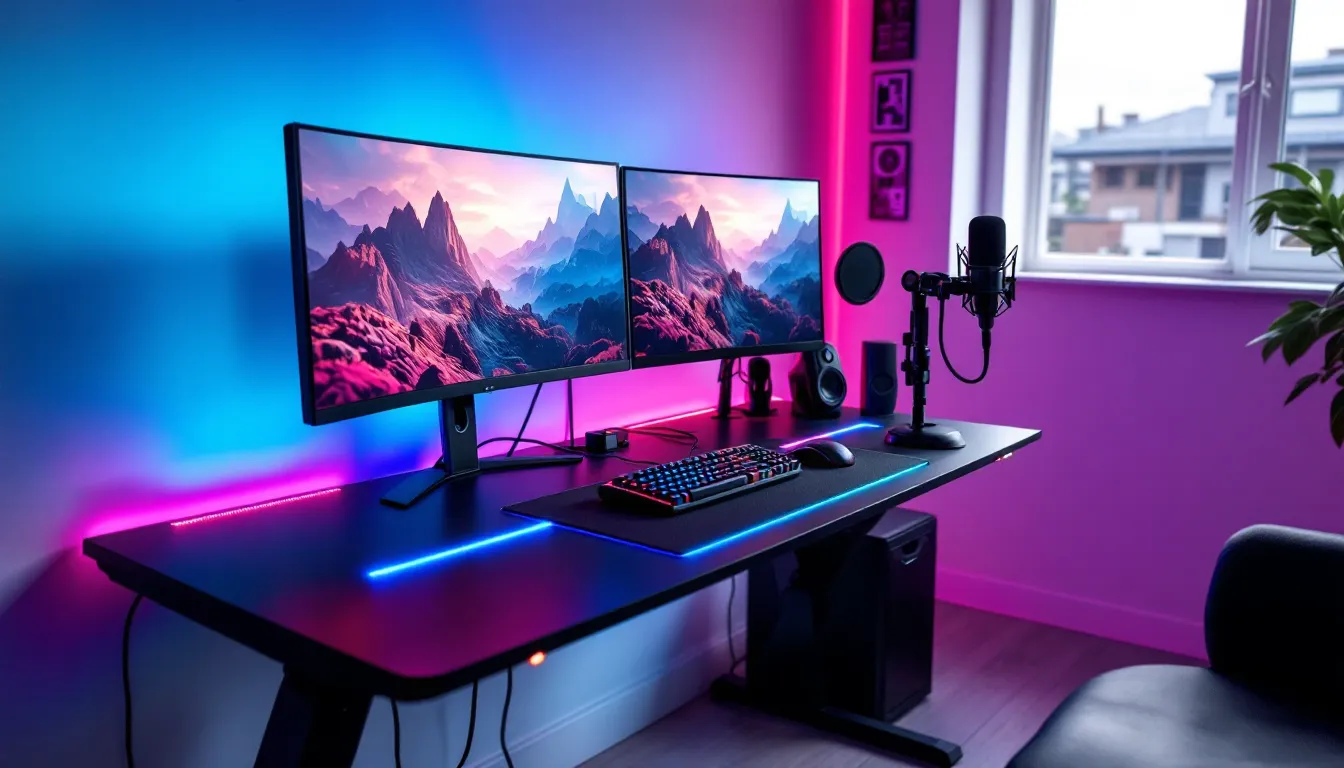

A gaming setup is more than just the GPU horsepower or the refresh rate on your monitor, it’s the complete experience. And in 2026, RGB lighting has evolved from a flashy extra to an essential part of serious gaming environments. A gaming desk with LED lights doesn’t just look good on stream: it creates dynamic ambiance, reduces eye fatigue during marathon sessions, and ties your entire battlestation together with synchronized lighting effects.
Whether you’re building from scratch or upgrading your current desk, LED integration has become more accessible, customizable, and functionally useful than ever. Desks now ship with built-in RGB strips, smart controls, and ecosystem compatibility that syncs with your games, peripherals, and even your room’s smart lighting. This guide breaks down everything you need to know: what features actually matter, which desks deliver the best value in 2026, and how to retrofit LEDs onto your existing setup without spending a fortune or tangling cables.
Key Takeaways
- A gaming desk with LED lights reduces eye strain through bias lighting and improves immersion by syncing with in-game events and environments.
- RGB systems offer full-spectrum customization while single-color LEDs provide budget-friendly bias lighting; RGB has become affordable enough that most gamers choose it for flexibility.
- Quality gaming desks with LED lighting include proper cable management channels, grommets, and weight capacity of 150–250 lbs to safely support multiple monitors and peripherals.
- Retrofitting LED strips to an existing desk costs $30–$150 and requires addressable RGB strips (60+ LEDs per meter), proper mounting with aluminum channels, and syncing through software like SignalRGB or Aurora.
- Desk stability and material quality matter more than RGB aesthetics; solid frames, adjustable feet, and proper height positioning (26–30 inches for sitting) directly impact gaming comfort and performance.
- Regular maintenance like monthly dust removal and checking cable connections prevents common LED issues such as flickering, color drift, and adhesive failure, ensuring long-term reliability.
Why LED Lighting Matters for Your Gaming Desk
LED lighting on a gaming desk isn’t purely aesthetic, it serves functional purposes that directly impact comfort, performance, and content quality. Here’s why it’s become standard equipment in competitive and casual setups alike.
Enhanced Ambiance and Immersion
RGB lighting transforms a desk from a piece of furniture into part of the game world. When your desk pulses red during combat or shifts to cool blue in stealth sequences, it extends the game’s atmosphere beyond the screen. Modern lighting ecosystems like Razer Chroma, Corsair iCUE, and ASUS Aura Sync allow desks to react in real-time to in-game events, health bars, or ammo counts.
This isn’t just flash, it’s environmental feedback. Your peripheral vision picks up color shifts without breaking focus from the action. Many competitive players use subtle lighting cues as status indicators during intense moments when they can’t afford to glance at HUD elements.
Reduced Eye Strain During Long Gaming Sessions
Staring at a bright monitor in a dark room is a fast track to eye fatigue. Bias lighting, a soft glow behind the monitor or around the desk edges, reduces the contrast between screen brightness and the surrounding environment. This cuts down on eye strain significantly during extended play.
The key is indirect illumination. LEDs mounted on the underside or rear edge of a desk provide ambient light that doesn’t shine directly into your eyes but fills your peripheral vision with a comfortable glow. Warmer tones (2700-3500K) work best for late-night sessions, while cooler whites (5000-6500K) help maintain alertness during the day.
Content Creation and Streaming Benefits
For streamers and content creators, desk lighting is production value. Dynamic RGB adds visual interest to camera feeds without requiring expensive studio lights. Viewers notice the difference, streams with proper lighting and synchronized effects look more polished and professional.
Modern LED desks integrate with streaming software like OBS Studio and Streamlabs, triggering lighting changes based on alerts, donations, or follower goals. Some creators use color coding: green for new followers, purple for subs, red for raids. It’s functional feedback that doubles as entertainment for the audience.
Key Features to Look for in a Gaming Desk With LED Lights
Not all LED gaming desks are created equal. Some deliver genuine utility, while others bolt on cheap strips that flicker or desync. Here’s what separates quality implementations from gimmicks.
RGB vs. Single-Color LED Systems
RGB (Red-Green-Blue) systems offer full-spectrum color control. You can dial in any shade you want, create gradients, and program complex lighting effects. These systems cost more but provide infinitely more customization. Most RGB setups use addressable LEDs, meaning each individual light can display a different color simultaneously, essential for wave effects, reactive lighting, and game-specific profiles.
Single-color LEDs (usually white or blue) are cheaper and simpler. They’re fine for basic bias lighting but offer no customization beyond on/off and sometimes brightness control. If you just want to reduce eye strain and don’t care about aesthetics, single-color strips get the job done at a fraction of the cost.
In 2026, RGB has become affordable enough that most gamers choose it even if they stick to static colors, it’s nice having the option to change things up.
Control Options: Remote, App, and Voice Integration
Control interfaces vary wildly in quality. Budget desks include basic infrared remotes with preset patterns. These work but are clunky, you’ll lose the remote in a month.
Mid-range and premium options offer dedicated apps for smartphones or PC. Apps provide granular control: custom color selection, brightness curves, scheduling, and effect speed adjustment. The best apps integrate with popular ecosystems like Philips Hue, Nanoleaf, or LIFX for whole-room synchronization.
Voice control through Alexa, Google Assistant, or HomeKit is increasingly common. It’s convenient for quick adjustments without alt-tabbing out of a game. “Alexa, set desk to purple” beats fumbling for a remote mid-match.
Look for desks with multiple control options. Physical buttons are useful when apps glitch or your phone’s dead.
Desk Size and Surface Area Considerations
LED coverage matters. A 48-inch desk with lights only along the front edge looks unbalanced and provides poor bias lighting. Quality implementations wrap LEDs around three sides (front, left, right) or four sides including the back.
Surface area determines whether your entire setup fits comfortably. For dual or triple monitor setups, aim for at least 60 inches wide with 28-30 inches of depth. Corner desks offer more total space but can create awkward cable routing for LED power supplies.
Materials affect light diffusion. Carbon fiber texture and matte finishes prevent glare and hotspots. Glossy surfaces reflect LEDs unevenly, creating bright spots that distract during gameplay.
Weight capacity is critical for multi-monitor rigs. Most LED desks handle 150-250 lbs, but verify specs if you’re mounting three 32-inch displays plus speakers, a PC, and peripherals.
Cable Management and Power Solutions
LED systems add power requirements. Built-in LEDs usually connect to a single wall outlet or USB hub, but retrofitted strips often need separate adapters. Poor cable management becomes a fire hazard when you’re daisy-chaining power strips.
Quality gaming desks include:
- Cable raceways or channels along the back edge
- Grommets for routing cables down to floor-level power strips
- Under-desk trays for mounting power supplies and controllers out of sight
- Velcro straps or clips for bundling cables neatly
Some premium models feature built-in wireless charging pads and USB hubs integrated into the desktop, reducing the need for external adapters. These features cost more but dramatically clean up desk clutter.
Top Gaming Desks With Built-In LED Lighting in 2026
The market’s flooded with LED gaming desks, but only a handful deliver on both build quality and lighting performance. Here’s what’s worth your money in 2026.
Best Overall: Premium RGB Gaming Desks
The Secretlab MAGNUS Pro XL (72-inch) remains the gold standard. It features integrated ARGB lighting along all four edges with full Chroma RGB sync support across Razer, Corsair, and ASUS ecosystems. The magnetic cable management system is brilliant, accessories snap into place without tools, and the built-in power supply sits flush with the desk’s underside.
Weight capacity hits 265 lbs, and the full-metal frame construction feels bombproof. At $999-$1,299 depending on configuration, it’s expensive but worth it for serious setups. The lighting zones are independently controllable, so you can run different effects on each edge simultaneously.
The Arozzi Arena Ultrawide Curved (63-inch) offers similar features at $649. The curved design wraps around you for immersive gameplay, and RGB strips run the full perimeter. Build quality isn’t quite Magnus-tier, but it’s solid for the price.
Best Budget-Friendly Options
The Eureka Ergonomic Z60 ($299) punches way above its weight class. It includes RGB lighting with app control, a sturdy steel frame, and a large mousepad-style surface. Lighting effects are limited compared to premium desks, but the 16.8 million color options and decent brightness make it a strong value play.
For ultra-budget setups, the Homall Gaming Desk with LED ($179) delivers basic RGB strips and acceptable build quality. Don’t expect advanced features or ecosystem integration, but it lights up and holds your gear without wobbling. Good starter option for teens or college dorms.
Best for Streamers and Content Creators
The Elgato Master Mount L Desk ($849) was designed specifically for content creation. It features Key Light integration, syncing desk LEDs with overhead lighting for consistent color temperature across your entire camera frame. The modular design accepts Elgato’s ecosystem of mounts for cameras, microphones, and capture cards.
RGB control runs through the Stream Deck, allowing you to trigger lighting changes with physical buttons during live streams. Multiple configurations have proven popular with gaming setup enthusiasts, especially those transitioning from casual to professional-quality production.
The NZXT Capsule RGB Desk ($599) offers similar streaming-focused features with tighter integration for NZXT’s CAM software, which many PC builders already use for monitoring temps and fan curves.
Best Compact Desks for Small Spaces
Small spaces don’t mean sacrificing RGB. The Flexispot GT1 (48-inch, $349) includes full RGB strips, height adjustment via electric motor, and solid cable management even though its compact footprint. Perfect for apartments or shared gaming rooms.
The Respawn 1010 (47-inch, $269) offers fixed height but includes RGB cup holders and headset hooks with integrated lighting, gimmicky but genuinely useful. The carbon fiber texture resists scratches and looks clean without requiring a desk mat.
How to Add LED Lights to Your Existing Gaming Desk
Already own a solid desk but want the RGB treatment? Retrofitting LEDs is straightforward and costs $30-$150 depending on quality and length.
Choosing the Right LED Strip Lights
Addressable RGB strips (WS2812B or similar) are what you want. These allow individual LED control for advanced effects. Look for:
- 60 LEDs per meter minimum for smooth color gradients
- IP20 or IP65 rating (IP65 if you’re prone to spilling drinks)
- 3M adhesive backing for easy mounting
- 12V or 5V power supply depending on strip length
Popular options include:
- Govee Immersion Kit ($69): Includes camera for screen-reactive lighting
- Philips Hue Lightstrip Plus ($89): Best ecosystem integration but expensive
- BTF-Lighting WS2812B ($28/16ft): Budget option with decent quality
Avoid ultra-cheap no-name strips from sketchy sellers. They flicker, produce inconsistent colors, and fail within months.
Installation Tips and Placement Strategies
Measure your desk’s perimeter and add 10% for corners and power routing. Most desks need 10-13 feet of strip for full coverage.
Installation steps:
- Clean the mounting surface with isopropyl alcohol and let dry completely
- Start at the rear center and work toward the front, leaving slack at corners
- Use aluminum channels or corner connectors for clean 90-degree turns
- Route the power cable along existing cable management paths
- Secure the controller box under the desk with double-sided tape or zip ties
Placement considerations:
- Mount strips on the underside of the desk edge for indirect lighting
- Keep LEDs at least 1 inch from the edge to prevent direct eye exposure
- Position the controller box near a power outlet to minimize cable runs
- Leave access to the controller for troubleshooting without dismantling everything
For seamless corners, use connectors instead of trying to bend the strips sharply, bending damages the traces and causes failures.
Syncing LEDs With Your Gaming Setup
The magic happens when your desk lights react to gameplay. Several solutions exist:
Hardware-based sync:
- ASUS Aura Terminal: Physical controller that syncs Aura-compatible devices
- Corsair Lighting Node Pro: Integrates addressable strips into iCUE ecosystem
- Razer Chroma Controller: Adds non-Razer LEDs to Chroma sync
Software-based sync:
- SignalRGB: Free software that unifies RGB across brands and supports game integrations
- Aurora: Open-source alternative with community-created game profiles
- Artemis: Another solid open-source option with active development
Many esports enthusiasts prefer software solutions for the flexibility. You can create custom profiles that match specific games: health-reactive red for FPS titles, blue for cooldown timers in MOBAs, or rainbow wave for rhythm games.
For screen-reactive effects, the Govee Immersion system uses a camera to sample your display and mirrors those colors on your desk. It works with any game without requiring software integration, though there’s a slight delay (40-80ms) that some notice during fast-paced games.
Customizing Your LED Gaming Desk Experience
Once your lighting is installed, customization turns functional hardware into a personalized experience. Advanced users can create surprisingly sophisticated effects with the right software and a bit of patience.
Synchronizing Lighting With Game Audio and Visuals
Audio-reactive lighting adds another dimension to immersion. Your desk pulses to gunfire, throbs with explosions, and shifts with soundtrack intensity.
Wallpaper Engine ($4 on Steam) includes audio-reactive wallpaper profiles that can trigger lighting changes through compatible RGB ecosystems. It’s primarily a wallpaper tool, but the lighting integration works surprisingly well.
WLED (free, open-source) is the enthusiast choice. It runs on cheap ESP32 microcontrollers and offers insane customization including audio reactivity via microphone input or line-in from your audio interface. Setup requires basic electronics knowledge but unlocks effects impossible with commercial controllers.
For game-specific visual sync, Artemis supports individual game profiles that react to health, ammo, cooldowns, and other in-game states. The Counter-Strike 2 profile flashes red when flashed, dims when smoked out, and shows health as a gradient along the desk edge. The Overwatch 2 profile displays ultimate charge as a progressive fill effect.
Some games have native RGB support through official SDKs. Valorant and League of Legends support Razer Chroma natively, while Apex Legends works with Corsair iCUE out of the box. Check your game’s settings menu for RGB or lighting options.
Creating Custom Lighting Profiles for Different Games
Different genres benefit from different lighting approaches:
FPS games: Keep it functional. Red for low health, white for normal, amber for flashbang effects. Avoid constant movement that distracts during clutch moments.
RPGs and adventure games: Go full immersive. Match lighting to game environments, green for forests, orange for deserts, blue for ice caves.
Horror games: Dim, cool-toned static lighting with occasional reactive flashes. Constant effects kill tension: subtle environmental lighting enhances it.
Racing games: Speed-reactive gradients. Lighting shifts from blue (slow) through white (moderate) to red (high speed). Adds visceral feedback during overtakes.
Strategy and MOBAs: Status-based lighting. Different colors for ally/enemy, cooldown indicators, resource levels.
Most RGB software allows profile switching via hotkey. Set up game-specific profiles and bind them to F13-F24 (rarely used function keys) for quick switching without opening software.
Smart Home Integration and Ecosystem Compatibility
In 2026, gaming setups increasingly integrate with smart home ecosystems. Your desk lighting can respond to voice commands, room occupancy, time of day, and even weather.
Google Home and Alexa both support major RGB brands. Create routines that:
- Turn desk lights red when Twitch stream goes live
- Dim lighting automatically at night for reduced eye strain
- Flash when you receive important notifications
- Match room lighting when you’re not gaming
HomeKit integration is spottier but improving. Philips Hue strips work perfectly, while cheaper options require bridges like Homebridge running on a Raspberry Pi.
The real power comes from IFTTT (If This Then That) integrations. Examples:
- Desk flashes green when your favorite streamer goes live
- Lighting changes based on weather (overcast = warmer tones)
- Automatic profiles based on which game is running (detected via PC monitoring)
- Team colors light up when your esports team wins a match
Advanced users run Home Assistant for completely customized automation. It’s overkill for most, but if you’re already running smart home gear, adding desk lighting creates some genuinely cool scenarios.
Ergonomics and Practical Considerations
RGB looks great, but comfort and functionality matter more for long-term satisfaction. A pretty desk that hurts your back or can’t support your monitors is a terrible investment.
Height Adjustability and Posture Support
Sit-stand desks have proven health benefits for people who game or work for extended periods. Models like the Flexispot E7 with RGB add-ons ($549) let you alternate between sitting and standing throughout the day.
Proper desk height positions your elbows at 90 degrees when hands rest on the keyboard. For most adults, that’s 26-30 inches for sitting, 38-44 inches for standing. Fixed-height desks work if they match your measurements, but electric adjustment adds convenience.
Height adjustment mechanisms vary:
- Manual crank: Cheap but tedious
- Pneumatic: Smooth but limited weight capacity
- Electric dual-motor: Best performance, handles heavy loads, costs more
LED systems don’t affect adjustment mechanisms but add cable complexity. Look for desks with cable management channels that accommodate the full height range without cables snagging or pulling loose.
Monitor position matters as much as desk height. Top of screen should be at or slightly below eye level, 20-30 inches from your face. Many setups benefit from monitor arms rather than stands, they free up desk space and allow perfect positioning.
Material Quality and Durability
Desktop materials dramatically affect longevity:
Particleboard/MDF: Cheap, lightweight, prone to sagging under heavy loads. Acceptable for budget desks under 100 lbs total weight.
Plywood: Better strength-to-weight ratio, resists sagging, mid-range price.
Solid wood: Premium feel, excellent durability, heavy, expensive. Overkill for most gaming setups.
Steel/aluminum: Used for frames and some surfaces. Strong, stable, doesn’t warp. Can feel cold and industrial.
Tempered glass: Looks sleek but shows fingerprints, can crack under point loads (dropped peripherals), and reflects light awkwardly.
Frame construction matters more than desktop material. Steel tube frames provide excellent stability without excessive weight. Cross-bracing prevents wobble during intense gaming sessions, nothing kills immersion like a desk that shakes every time you move your mouse.
Quality desks include adjustable feet for leveling on uneven floors. Cheap desks skip these, leaving you shimming with cardboard.
Weight Capacity for Multiple Monitor Setups
Manufacturers often overstate weight capacity. Verify with user reviews and demonstrations.
Typical weights:
- 27-inch gaming monitor: 10-15 lbs
- 32-inch gaming monitor: 15-25 lbs
- Gaming PC (mid-tower): 25-35 lbs
- Peripherals, speakers, accessories: 15-25 lbs
A triple-monitor setup with PC on desk easily hits 120-150 lbs. Add books, drinks, random clutter and you’re pushing 200 lbs. That “300 lb capacity” desk might sag at 180 lbs, conservative estimates suggest using only 60-70% of rated capacity for long-term stability.
LED components add minimal weight (under 5 lbs total) but power supplies and controller boxes need mounting locations that don’t interfere with monitor stands or PC placement.
According to testing data from monitor review specialists, desk stability affects perceived motion clarity on high-refresh monitors. A wobbly desk makes 240Hz feel like 144Hz because the entire display is vibrating microscopically during fast mouse movements.
Maintenance and Troubleshooting Your LED Gaming Desk
LEDs are generally reliable, but issues crop up. Proper maintenance prevents most problems, and basic troubleshooting fixes the rest.
Cleaning LED Components Safely
Dust accumulation dims LEDs and causes overheating in controllers. Clean monthly for optimal performance.
Safe cleaning process:
- Power off the entire lighting system, not just the controller, but at the wall outlet
- Wait 5 minutes for capacitors to discharge
- Use compressed air to blow dust from LED strips and controllers
- Wipe exposed LEDs with a barely-damp microfiber cloth (distilled water only)
- Never use solvents, ammonia-based cleaners, or paper towels that can scratch
- Dry completely before powering back on
For strips under the desk, dust buildup is minimal but cable connections collect grime. Inspect every 3-6 months and reseat connections if you notice flickering.
Adhesive backing eventually fails, especially in hot environments or on oily surfaces. When strips start sagging, clean the mounting surface again with isopropyl alcohol and apply 3M VHB tape as reinforcement. It’s stronger than the original adhesive and will outlast the LEDs themselves.
Common LED Issues and Quick Fixes
Problem: Section of strip is dead or wrong color
Cause: Damaged LED in addressable strip blocks signal to downstream LEDs
Fix: Identify the first malfunctioning LED. Cut the strip just before it, solder or use a connector to rejoin, skipping the bad LED. Or replace that strip section entirely.
Problem: Colors are incorrect (e.g., red displays as green)
Cause: RGB channel wiring is reversed or controller settings are wrong
Fix: Check software/app color settings first. If that’s not it, verify strip wiring matches controller pinout (GRB vs RGB order varies between strip types).
Problem: Flickering or dimming at high brightness
Cause: Insufficient power supply or voltage drop over long runs
Fix: Use a higher-amperage power supply (calculate 60mA per LED at full white, add 20% overhead). For strips over 16 feet, inject power at both ends to prevent voltage drop.
Problem: LEDs won’t sync with software
Cause: Driver issues, software conflicts, or incompatible firmware
Fix: Update RGB software, reinstall drivers, verify firmware versions match. Check online forums, specific game updates sometimes break RGB integrations temporarily until patches roll out.
Problem: Strips losing adhesion
Cause: Poor surface prep, oil/dust, or heat exposure
Fix: Remove strip, clean mounting surface with isopropyl alcohol, let dry completely, apply new 3M VHB tape to back of strip, press firmly for 30 seconds per section.
Problem: Controller overheating
Cause: Inadequate ventilation or overclocked settings pushing too much current
Fix: Mount controller in area with airflow, don’t trap it in closed compartments. Reduce max brightness if controller feels hot (over 120°F).
Most issues trace back to connections or power. Before assuming hardware failure, reseat all cables, verify power supply specs match requirements, and try different USB ports for controllers that use USB power.
Conclusion
A gaming desk with LED lights has evolved far beyond the RGB-everything meme phase. In 2026, it’s a practical upgrade that improves comfort, enhances immersion, and, for creators, adds production value that viewers notice immediately.
The decision between buying a pre-built LED desk versus retrofitting an existing one comes down to budget and hassle tolerance. Pre-built options like the Secretlab Magnus Pro deliver polish and integration you can’t easily replicate with DIY strips, but quality LED retrofits for $50-$100 get you 85% of the experience at a fraction of the cost.
Whatever route you choose, focus on functionality first: bias lighting to reduce eye strain, practical cable management to keep things clean, and solid construction that supports your actual gear. RGB should enhance your setup, not define it. When executed well, LED desk lighting becomes one of those invisible upgrades you don’t notice daily but would absolutely miss if it disappeared.
Your desk is the foundation of your gaming setup. Make it comfortable, make it functional, and yeah, make it light up in ways that make you smile when you sit down to play.